

*.gcdn.co target shown in the CDN resource’s Setup guide.
W3 Total Cache plugin setup
W3 Total Cache adds a Performance menu to the WordPress admin sidebar after it is activated.1
Open the plugin installer
Log in to WordPress admin (
example.com/wp-admin) and navigate to Plugins > Add Plugin.2
Install and activate the plugin
In Search Plugins, enter
W3 Total Cache. On the W3 Total Cache card by BoldGrid, click Install Now, then Activate.If the Setup Guide wizard opens, click SKIP to reach the settings pages.W3 Total Cache CDN settings
Generic Mirror is the W3 Total Cache type that rewrites hostnames in HTML without pushing files to a storage API. That is the type to use with Gcore CDN.1
Enable Generic Mirror
Navigate to Performance > General Settings and scroll to the CDN section.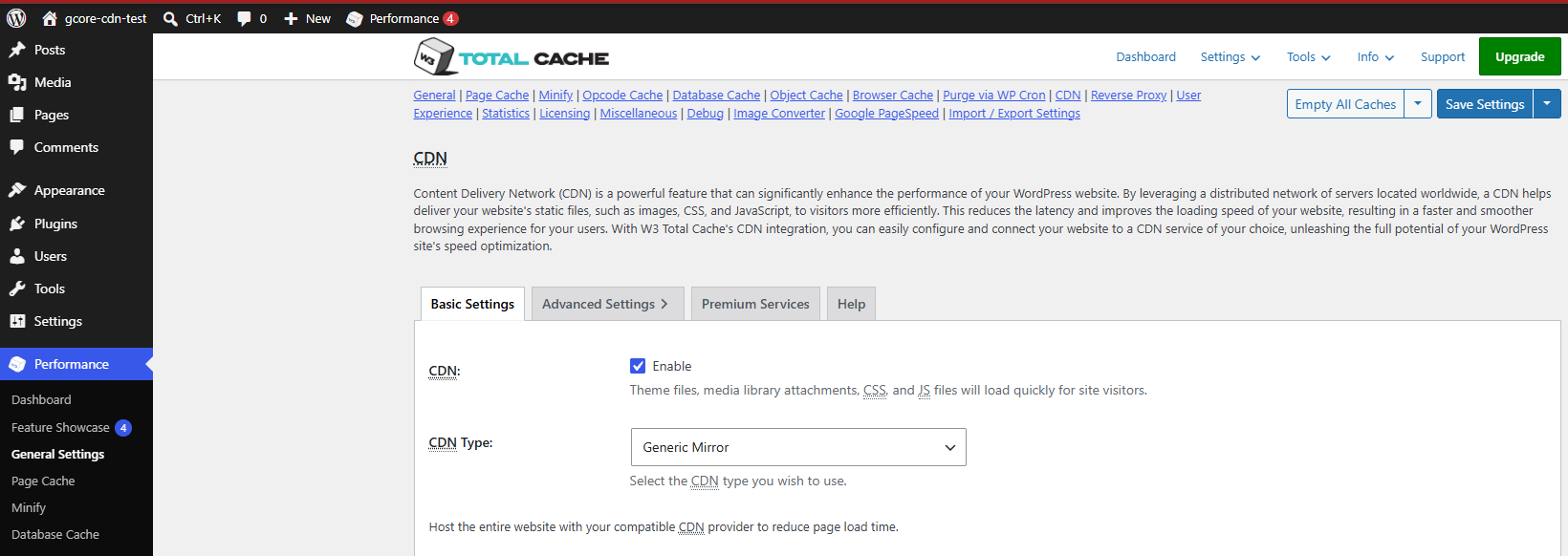

- Select Enable.
- In CDN Type, select Generic Mirror.
- Click Save Settings.
2
Enter the custom domain
In Replace site’s hostname with, enter the custom domain from the Gcore Customer Portal (CDN > CDN resources). Use the custom domain (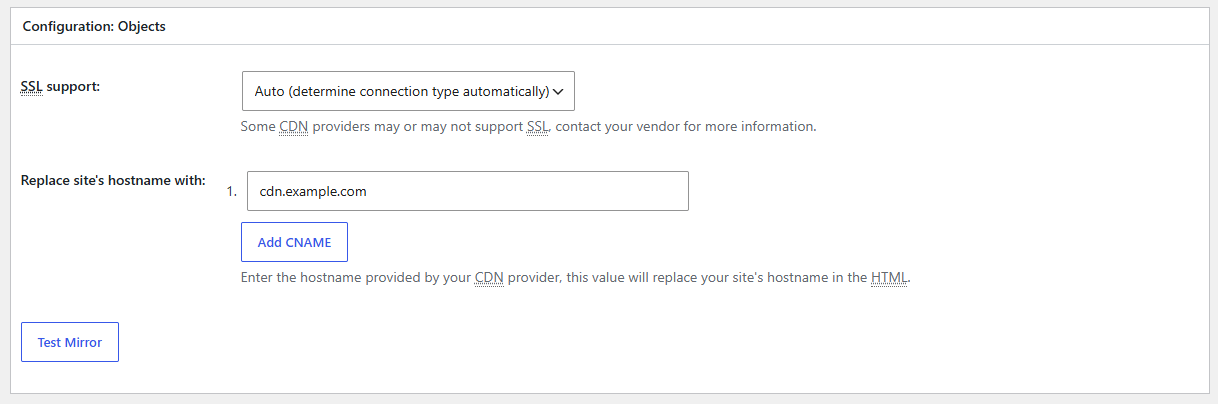
cdn.example.com), not the gcdn.co hostname. Click Save Settings & Purge Caches to save and clear cached HTML so pages are regenerated with the CDN hostname. If only Save Settings is available, navigate to Performance > Purge All Caches separately.3
Confirm CDN delivery
Open the site in a logged-out private browser window. In browser developer tools, open Network, disable the browser cache, and reload the page. Static files should request the custom domain instead of the origin hostname. Select a cached asset and confirm that a repeated request returns
HIT in the Cache response header.