

1
Enter server details
Enter a Server name and the Origin address — IPv4 or a domain name.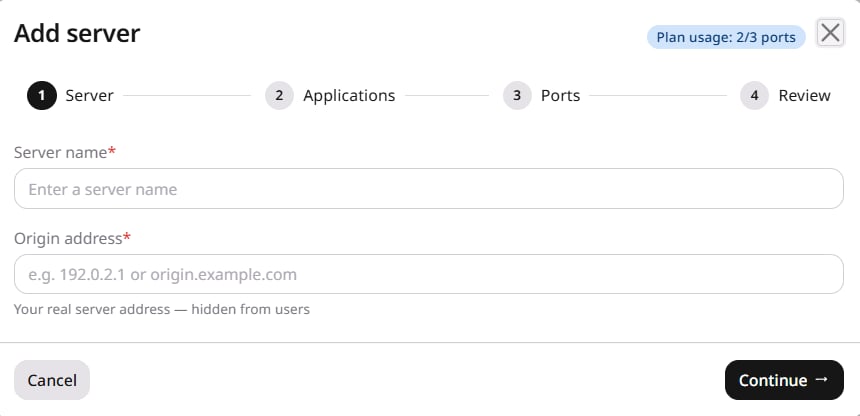
2
Select applications
Each card is a DDoS filtering profile for a specific application type — Minecraft Protection, Counter-Strike variants, FiveM, Generic TCP Server, General UDP Countermeasure, and others.Use Type to search to filter the list. Select every profile that matches traffic on this server.The plan usage counter in the wizard header tracks how many ports are consumed across all servers against the plan limit.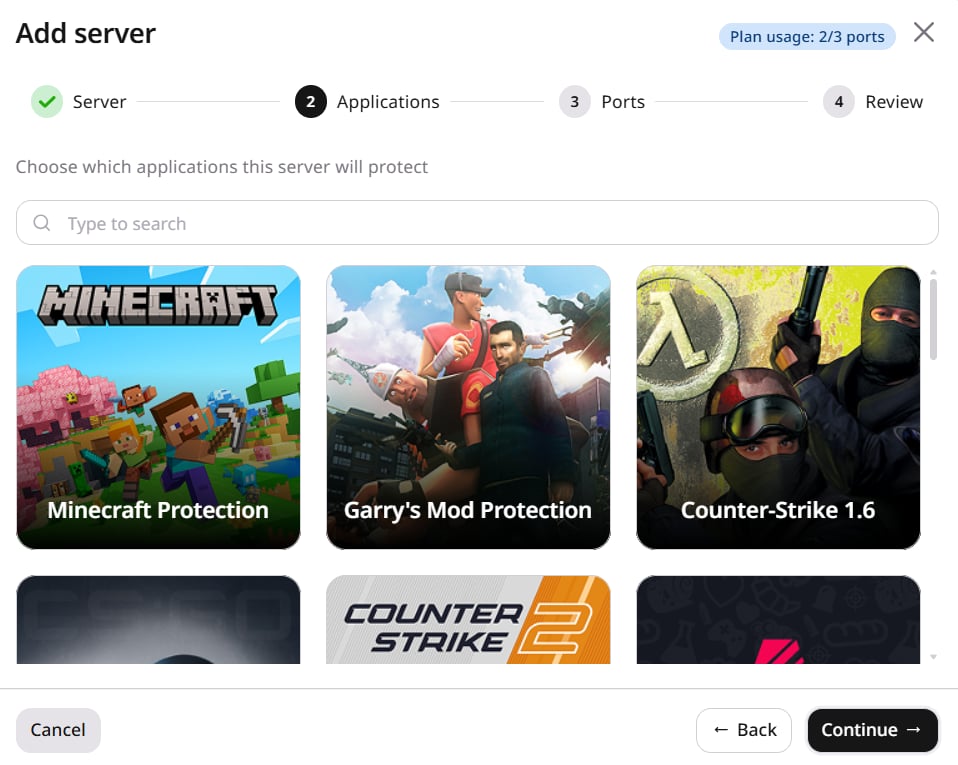
3
Set ports
For each selected application, enter the listening port (1–65535) and select TCP or UDP. Click Add port to add more ports.Click Advanced to set Proxy protocol on each port.Proxy protocol prepends a header so the origin sees the original client IP instead of the Edge Proxy address. It is available in two versions: V1 supports TCP connections and V2 supports both TCP and UDP and can carry additional connection metadata, so the origin application must support the selected version — otherwise, leave the setting Off.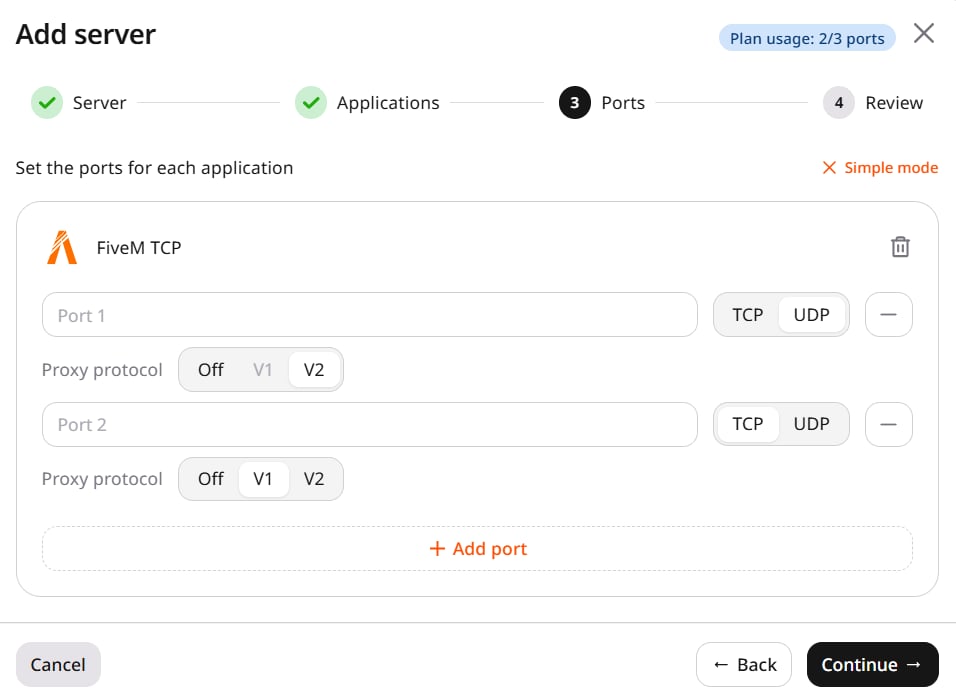
4
Review and deploy
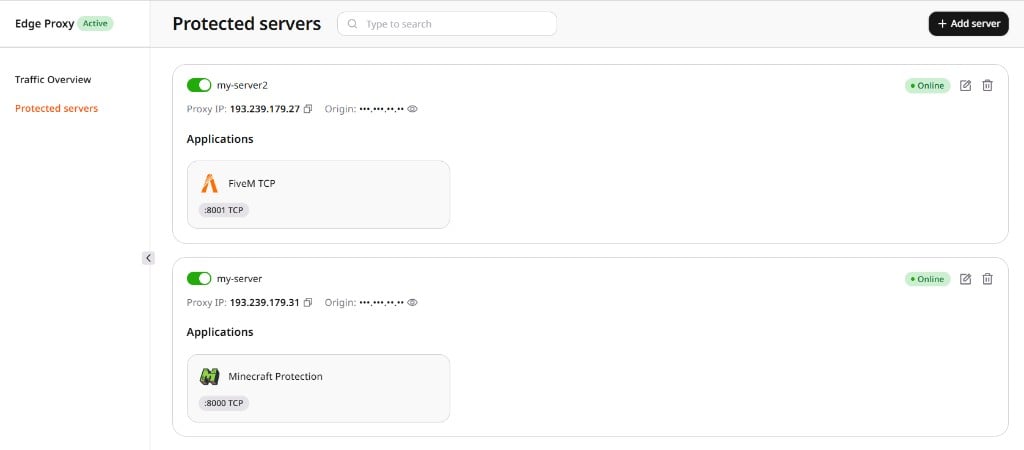
Click Deploy. Activation takes about 3 minutes, after which the server appears in the Protected servers list with Online status and an assigned proxy IP.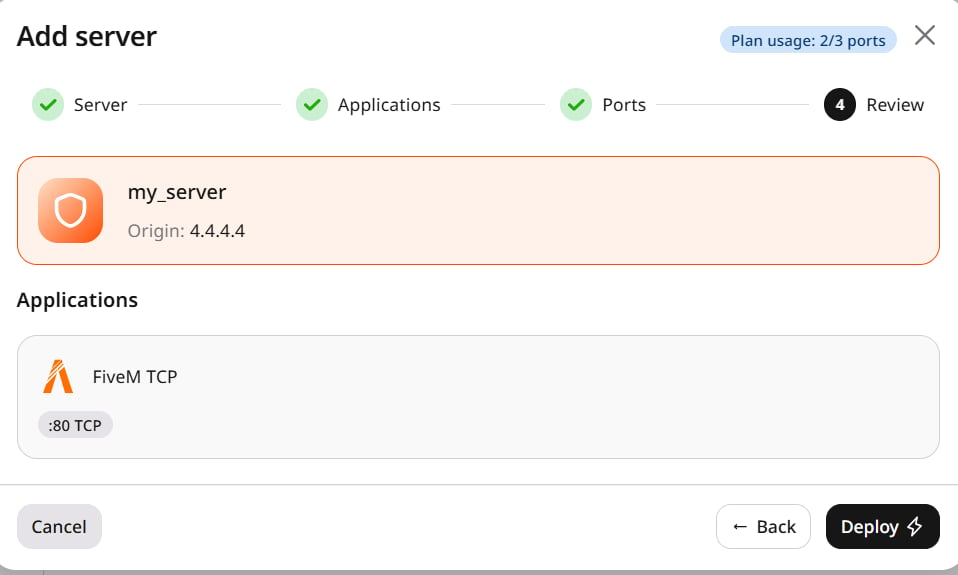
If the application is unreachable after activation, most activation issues trace back to firewall rules blocking Gcore edge IPs, incomplete DNS propagation, or a protocol mismatch.