

- Purge by URL (recommended) to remove content that belongs to a particular URL from the cache without impacting other cached items.
- Purge all to remove all data from the cache.
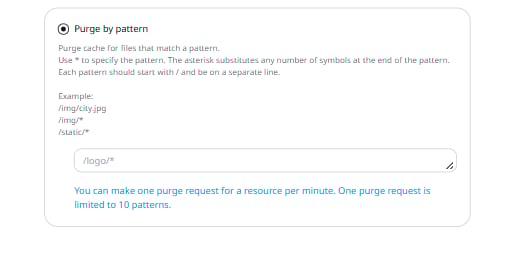
- Purge by pattern to remove content selectively by specifying path patterns with the
*operator that can replace any number of symbols.
Configure purge in the Gcore Customer Portal
- In the Customer Portal, navigate to CDN → Purge → Purge request.
- Select the relevant CDN resource from the dropdown menu.
- Select the desired purge type by clicking the radio button next to it, then follow the instructions below.
- Click the Purge button.
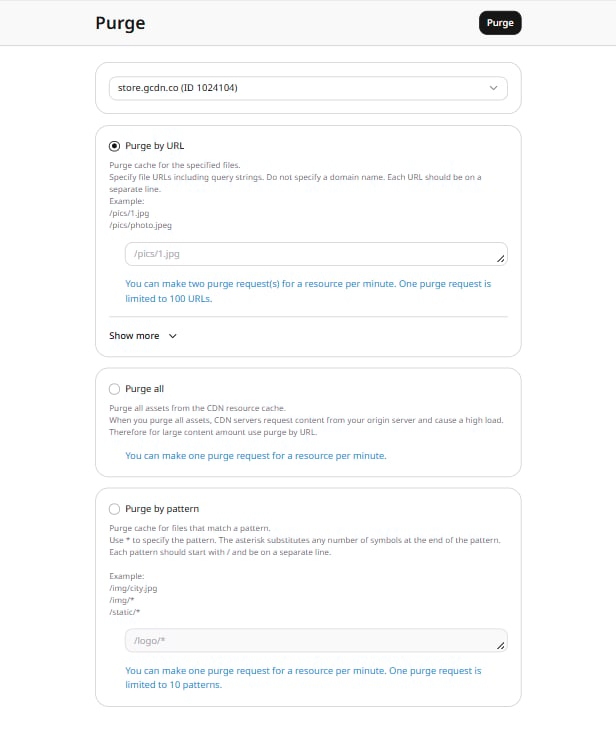
- Purge by URL
- Purge all
- Purge by pattern
In the text area, specify one or more content URLs to purge, entering one URL per line. Links must: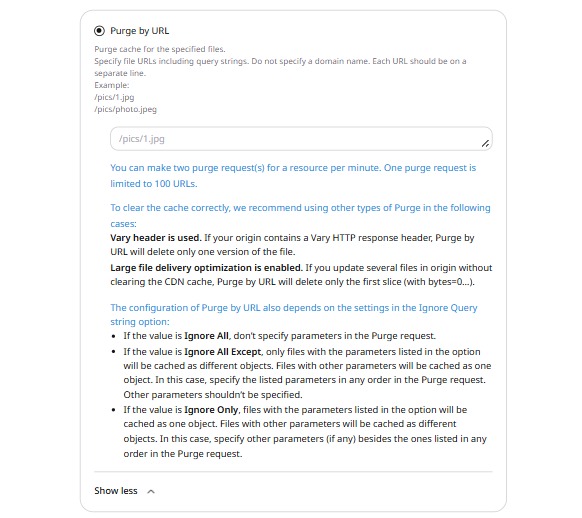
- Start with a slash (/).
- Not include a protocol, domain name, or wildcard (*).
- Include query strings if the CDN resource cache is configured to consider the query string.
https://www.example.com/pictures/icon.jpg?size=small, specify /pictures/icon.jpg?size=small.- A Vary HTTP response header is present on the origin. Purge by URL deletes only one version of the file.
- Large file delivery optimization is enabled. When several files on the origin are updated without clearing the CDN cache, Purge by URL deletes only the first slice (with bytes=0…).
- If the value is Ignore All, do not specify parameters in the Purge request.
- If the value is Ignore All Except, only files with the parameters listed in the option are cached as different objects. Files with other parameters are cached as one object. In this case, specify the listed parameters in any order in the Purge request. Other parameters should not be specified.
- If the value is Ignore Only, files with the parameters listed in the option are cached as one object. Files with other parameters are cached as different objects. In this case, specify other parameters (if any) besides the ones listed in any order in the Purge request.
Configure purge via API
The example below shows Purge by URL via API. Examples of other purge types (all and by pattern) are in the API documentation.API request details
API request details
- In Postman, open a new request tab, then do the following:
{{resource_id}} with the actual value.
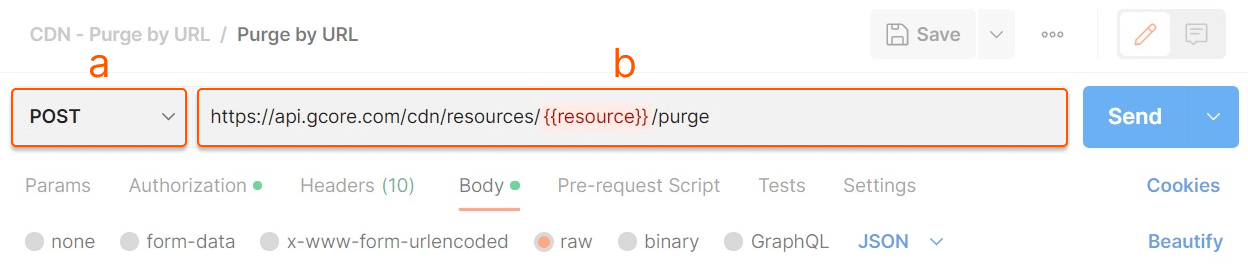
- Navigate to the Authorization tab and do the following:
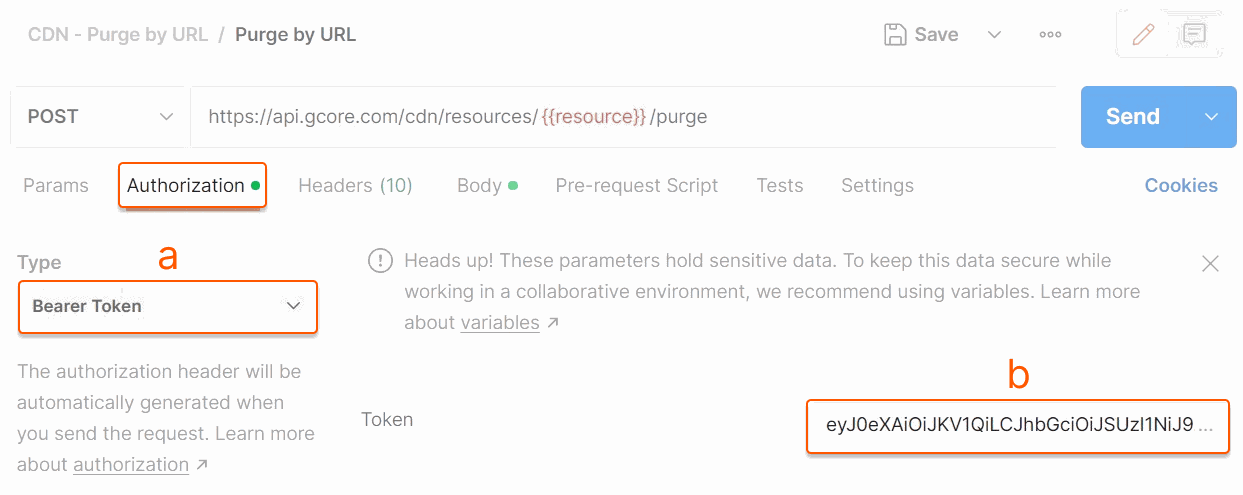
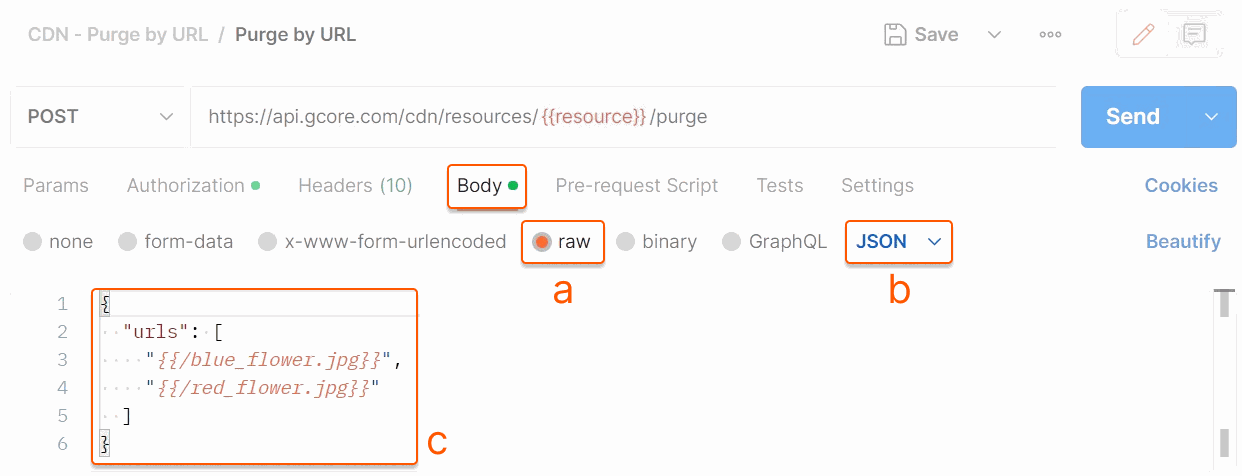
- Navigate to the Body tab and do the following:
{{ }} with actual values.
- Click Send.
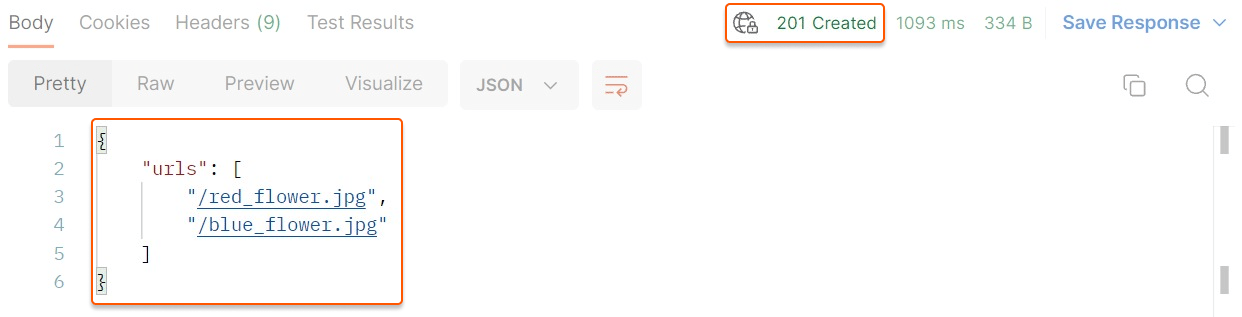
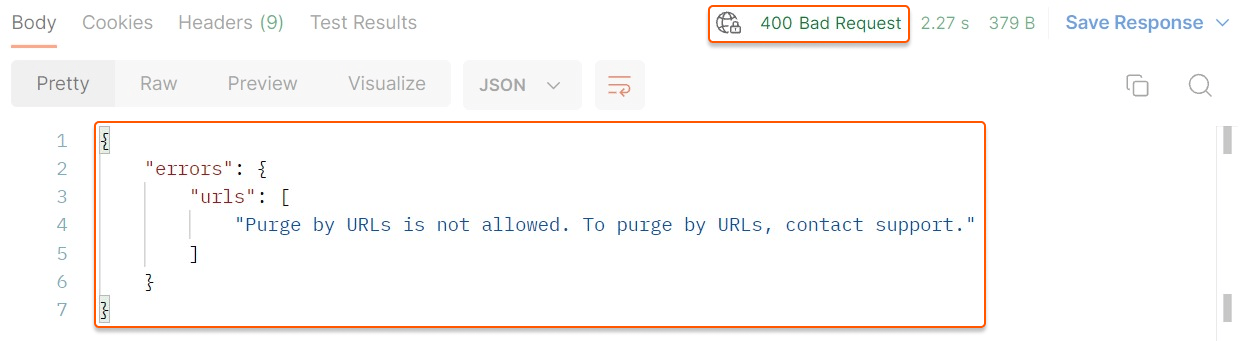
View purge history
Purge history is the section where the status of all purge requests can be checked.Purge history stores requests for the past month only.
- Search by CNAME. Specify the CNAME of the CDN resource.
- Type. Select the purge type (Purge by URL, Purge all, or Purge by pattern).
- Status. Select the status (In progress, Successful, Failed, or Status report disabled).
- Date. Set the time period (up to one month).