

Embedding approaches
An overlay (or an HTML widget) is a graphic placed over the stream footage. Overlays include webcam pop-up, chat, alert, advertisement banner, and time or weather widgets. Streamers from different industries (games, education, news, sports events) use overlays to enhance their streams’ visual appeal and functionality. There are two approaches to implementing overlays:- Overlays are embedded OVER the live stream in the player. In this case, the result is two “layers”: the lower one is the video stream, and the upper one is the overlay shown by the particular player.
- Overlays are embedded INTO the live stream. In this case, the overlay is part of the live stream.
Overlay example
In the example below, the game score widget appears in the upper left corner, the weather widget in the upper right corner, the poll widget in the lower right corner, and the time and date widget in the lower left corner.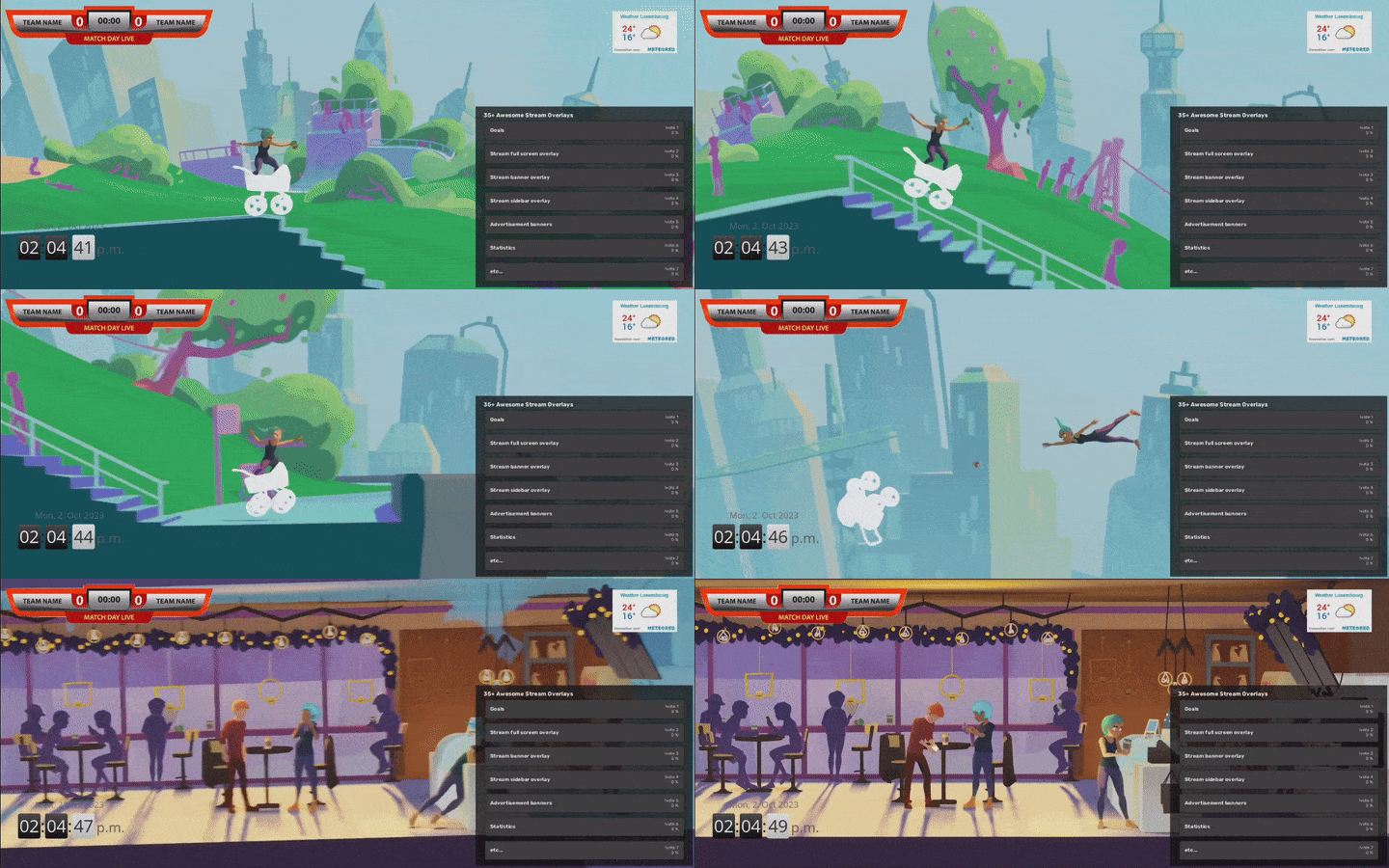
Gcore supports HTML overlays
Gcore Video Streaming supports overlays embedded into the live stream, which are managed using the API. Contact support or a personal manager to enable the overlay feature on the account. The main features of overlays via API are:- Use more than one overlay per live stream
- Size options: small overlays or overlays stretched over a full frame
- Transparent areas in overlays
- one FPS frequency update
- Automatic size scaling for adaptive bitrate qualities
- Place overlays in any area of the screen
Comparison of Gcore overlays and OBS studio overlays
OBS has functionality for using overlays. Let’s compare it to Gcore’s overlay feature:
While using OBS overlays, the OBS app must remain open. Computational resources are enough for only one live stream with overlay, which cannot be scaled to multiple live streams.
While using Gcore overlays, the overlay is embedded into a live stream. The widget is automatically available everywhere (for Gcore’s player, .m3u8 link, and .mpd link) and scales to any number of live streams.
Manage overlays via API
Manage HTML overlays on a live stream. Start by enabling overlays on the stream, then add overlay widgets. Overlays can be added, updated, and deleted while the stream is live without interrupting playback.An API token is required. Contact Gcore support to enable the overlay feature on the account before using these endpoints.
Enable HTML overlays on a stream
Sethtml_overlay to true on a stream to activate overlay support. The first overlay must be created before the encoder starts pushing — overlays added after the stream starts become active only after the encoder reconnects.
- Python SDK
- Go SDK
- curl
Create overlays
Add one or more overlay widgets to a stream. Each overlay is an HTML page rendered at one FPS and composited into the video at the specified position. Up to multiple overlays can be active simultaneously.- Python SDK
- Go SDK
- curl
List overlays
Retrieve all overlay widgets currently attached to a stream.- Python SDK
- Go SDK
- curl
Update an overlay
Change the URL, position, or dimensions of an existing overlay widget. Only the fields passed in the request body are updated — other fields are unchanged.- Python SDK
- Go SDK
- curl
Delete an overlay
Remove a specific overlay widget from a stream. Other overlays on the same stream are not affected.- Python SDK
- Go SDK
- curl