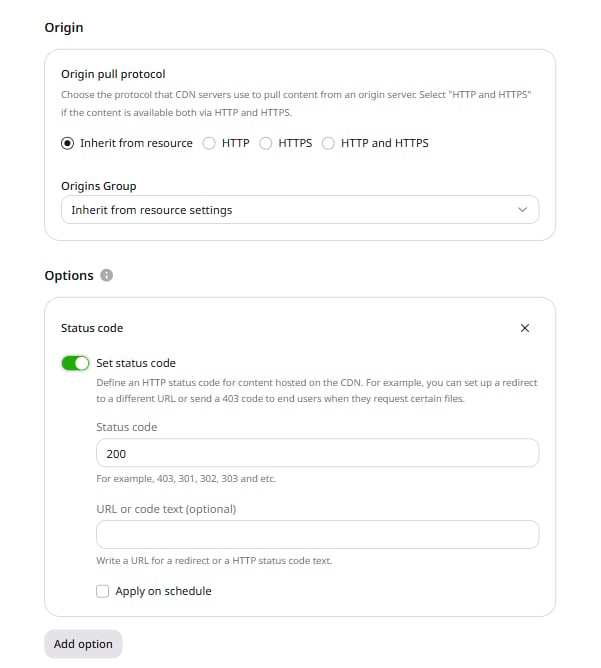
- Via Resource settings — applies the custom code to all content on the CDN resource.
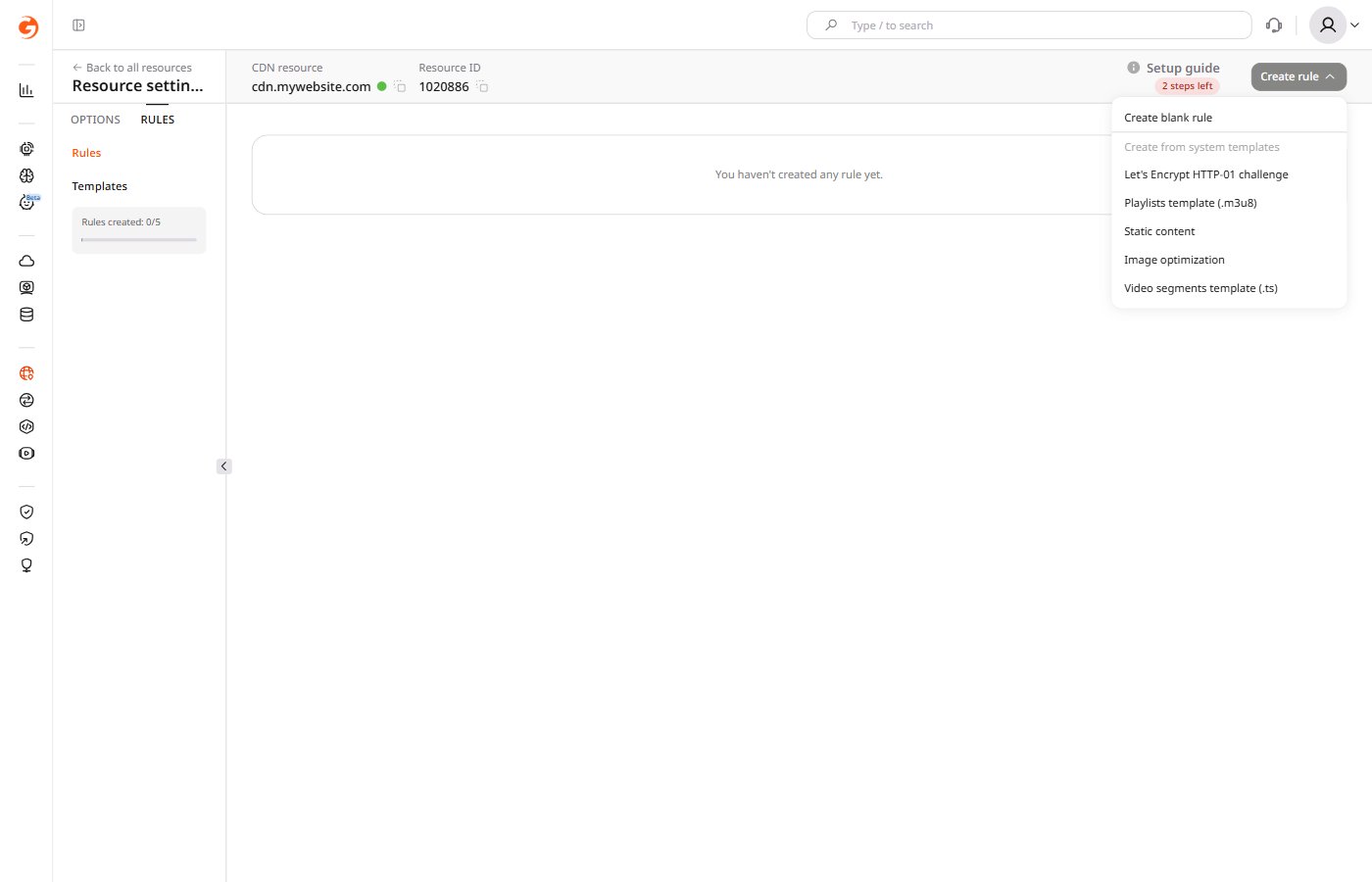
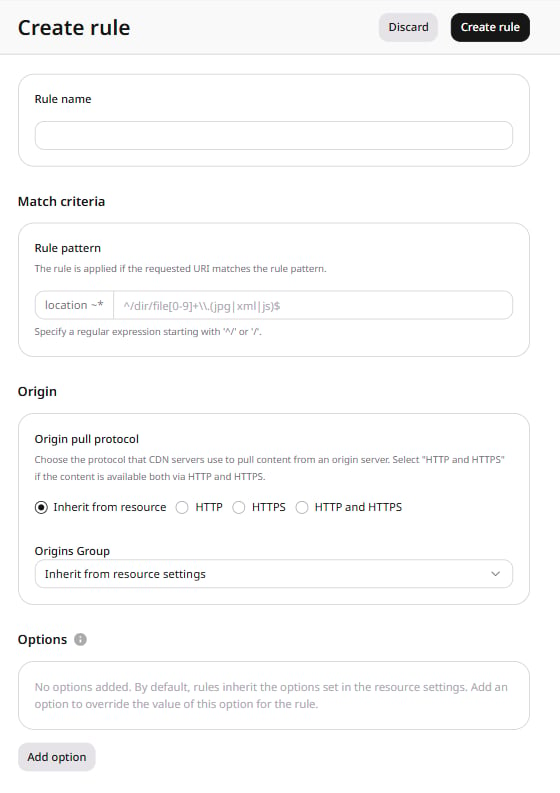
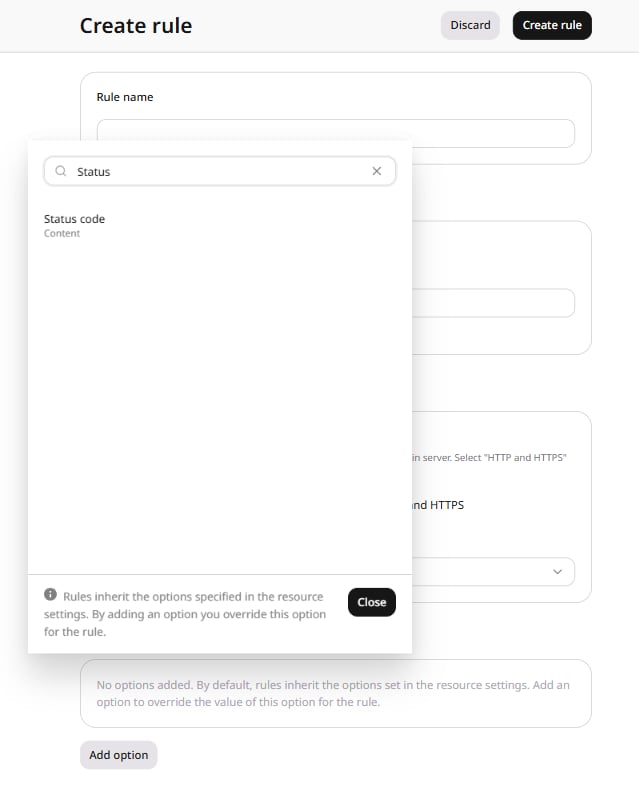
- Via Rules — applies the custom code only to files matching the rule pattern.
- Resource settings
- Rules
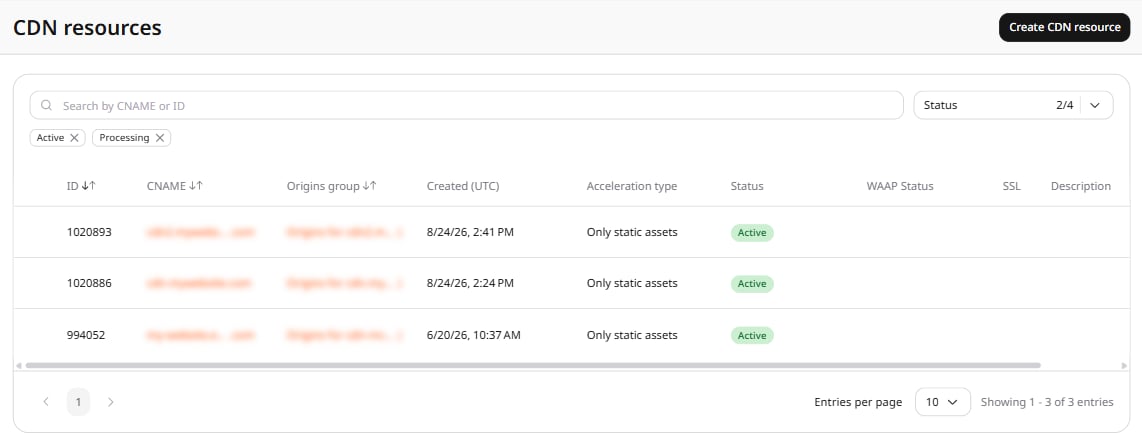
- In the Gcore Customer Portal, navigate to CDN > CDN resources.
- Click the CNAME of the required CDN resource to open Resource settings.
- Navigate to the OPTIONS tab.
- In the left menu, click Content to scroll to the Content section.
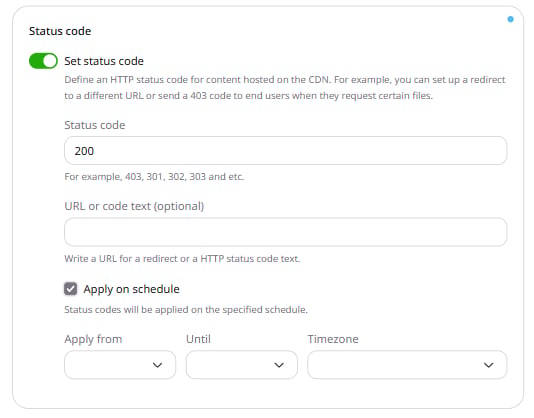
- Enable the Set status code toggle.
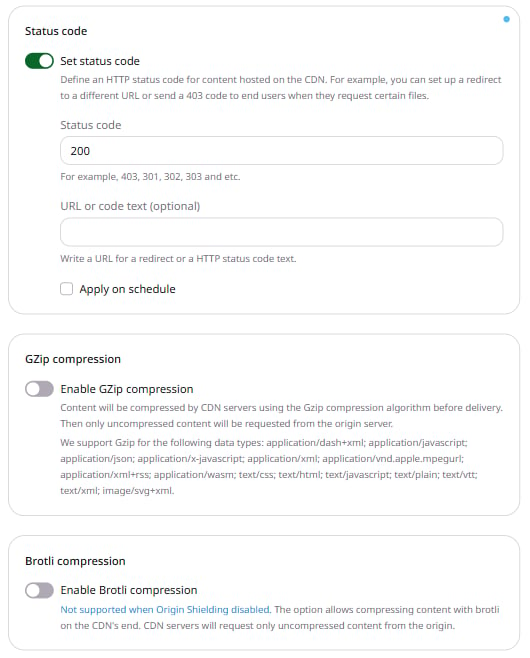
- In the Status code field, enter the desired HTTP status code. The field defaults to 200.
- (Optional) In the URL or code text field, enter a redirect URL or an HTTP status code text.
- (Optional) Select Apply on schedule. In the expanded block, set Apply from, Until, and Timezone to define the time range when the custom status code is active.
- Click Save changes.